Managing Sales
When an artwork sells, you can record that directly from its detail page.
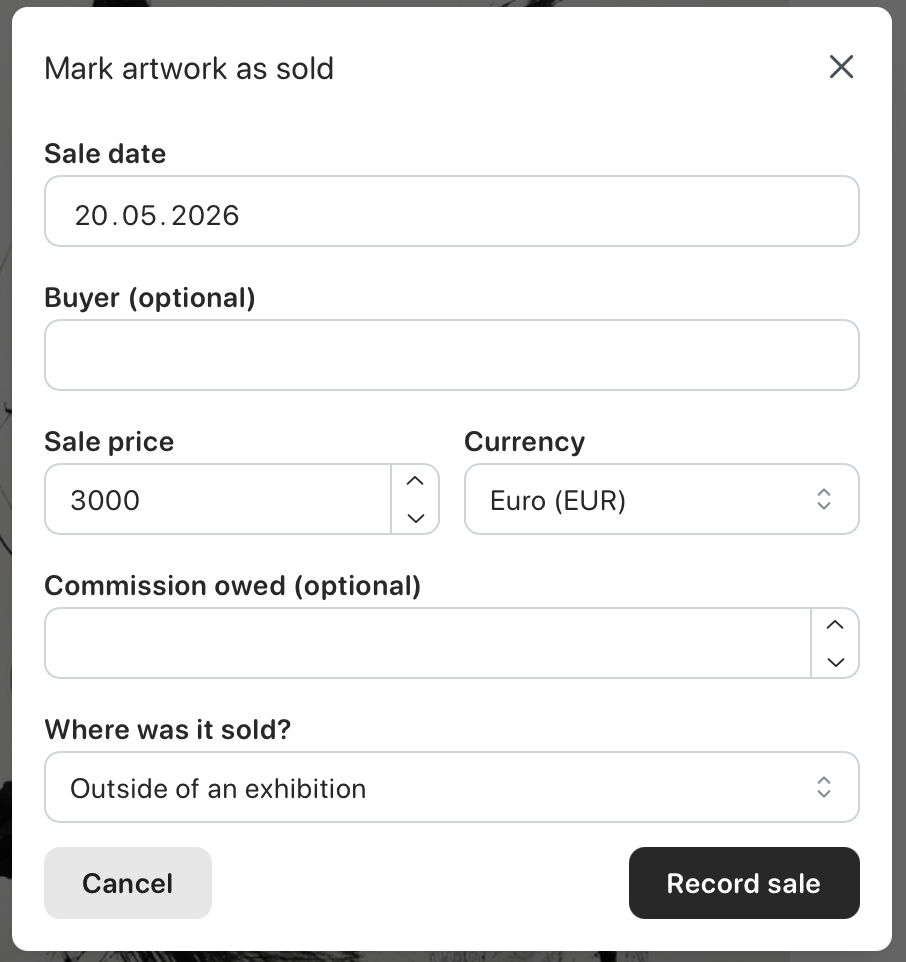
Click Mark as sold in the top right.
This opens a window where you can enter:
- the sale date
- the buyer
- the sale price
- any commission
- the exhibition, if the sale happened through one
- one attachment, such as an invoice
For editions, the sale form also records what was sold:
- for limited editions, exactly one eligible standard or special copy
- for open editions, one copy for each new sale
The price is the total price for that copy. Incomplete, failed, reserved, sold, gifted, and lost limited-edition copies cannot be selected for a new sale. Historical sales that included multiple edition numbers or open-edition copies keep their original quantities and total price.
Where the sale appears
Section titled “Where the sale appears”After you click Record sale, the information is added to:
Sale historyon the artwork- the artwork
Attachmentslist, clearly marked as part of that sale when an attachment was added Pricing historyon the artwork- the Finances section
In Sale history, sales with an attachment show a paperclip icon. Click it to open the file in a new window.
Selling a limited-edition copy changes its disposition to Sold. Selling an open-edition copy updates its quantity-based inventory. Neither workflow changes the artwork or copy location.
Editing a sale later
Section titled “Editing a sale later”If you need to correct something, open the Sale history section and click the pencil icon on the entry you want to update.
You can also replace or remove the sale attachment there. If an attachment upload is rejected, the sale is still saved and you can try the file again from the edit sale dialog.
Sale attachments can be up to 10 MB per file.